
Few things interrupt productivity as quickly as laptop battery draining too fast while you are in the middle of important work. Remote workers may lose progress during meetings, students may struggle during lectures, and travelers often find themselves searching for a charging outlet far too often.
However, rapid battery drain rarely happens for just one reason. Instead, it usually results from a combination of factors such as background apps, incorrect power settings, screen brightness, and battery aging. Because of this, understanding how your device uses power becomes essential before trying to solve the problem.
In many cases, small adjustments in system settings and usage habits can significantly extend battery life. Therefore, if you have been dealing with laptop battery draining too fast, the following practical fixes can help restore reliable performance while also improving long-term battery health.
Understanding Why Laptop Battery Draining Too Fast Happens
Most modern laptops use lithium-ion batteries, which naturally degrade over time. After approximately 300–500 charge cycles, batteries typically retain around 70–80% of their original capacity.
However, fast battery drain is often caused by operational factors rather than battery damage. For example:
• Excessive screen brightness
• Background applications consuming CPU resources
• High refresh rate displays
• Constant cloud synchronization
• Poor power management settings
• Keeping the battery at 100% charge for long periods
Because these factors affect energy consumption continuously, they can create the impression that laptop battery draining too fast is a hardware failure when it is actually a software or configuration issue.
Therefore, before changing usage habits, it is important to verify the real health of the battery.
Checking Battery Health to Diagnose Laptop Battery Draining Too Fast
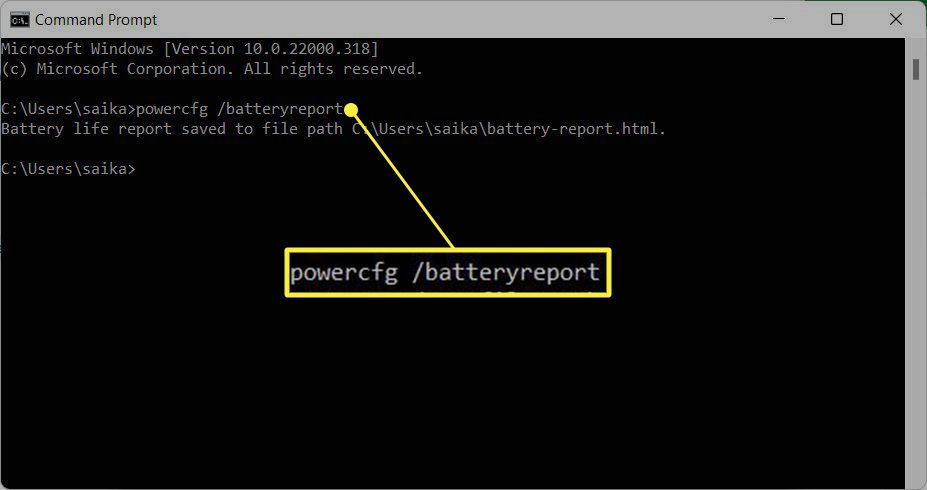
Battery health tools help determine whether the issue comes from battery wear or inefficient usage.
Windows Battery Report
Windows laptops include a built-in battery analysis tool that provides detailed insights.
Steps to generate the report:
- Open Command Prompt
- Type the command:
powercfg /batteryreport - Press Enter
- Locate the generated report file in your user folder
The report provides important information such as:
• Design Capacity – original battery capacity
• Full Charge Capacity – current battery capacity
• Cycle Count – number of charging cycles
If the full charge capacity has significantly decreased, it may explain why your laptop battery draining too fast during normal use.
coconutBattery for Mac Users
Mac users can use coconutBattery, a well-known diagnostic tool that shows:
• Battery health percentage
• Charge cycles
• Battery temperature
• Current charging status
Monitoring these metrics allows users to determine whether optimization will help or if a battery replacement is required.
Hidden Background Applications That Cause Laptop Battery Draining Too Fast
Many users overlook background applications that quietly consume battery power.
Below are five common apps responsible for excessive energy usage.
Web Browsers with Multiple Tabs
Browsers such as Chrome or Edge can consume large amounts of memory and processing power when several tabs remain open simultaneously.
To reduce energy consumption:
• Close unused tabs
• Use built-in energy saver modes
• Enable tab suspension features
Video Meeting Applications
Video conferencing tools like Zoom, Microsoft Teams, and Google Meet constantly utilize CPU, camera, and network resources.
Lowering video resolution or closing unnecessary applications during meetings can improve battery efficiency.
Cloud Sync Tools
Applications such as OneDrive, Dropbox, and Google Drive run background syncing operations.
Pausing synchronization when working on battery power can prevent laptop battery draining too fast.
Editing and Rendering Software
Graphic design tools, video editing software, and 3D rendering programs demand significant processing power. Even when idle, they can continue consuming resources.
Antivirus Software
Real-time protection and system scans also consume CPU power. Scheduling scans while the laptop is charging helps reduce unnecessary battery drain.
Display Optimization That Prevents Laptop Battery Draining Too Fast
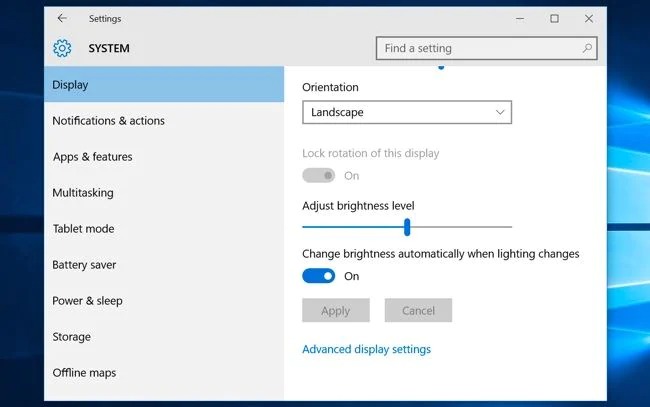
The laptop screen is one of the largest power consumers.
Therefore, optimizing display settings can significantly improve battery performance.
Important adjustments include:
• Lower brightness to 50–70% in indoor environments
• Enable adaptive brightness if supported
• Use dark mode in compatible applications
• Reduce refresh rate from 120Hz to 60Hz
High refresh rate displays provide smoother visuals but also increase power consumption. When working on battery, lowering refresh rate can noticeably reduce laptop battery draining too fast.
Power and Sleep Configuration to Improve Laptop Battery Life
Power management settings determine how efficiently the laptop uses available battery energy.
Adjusting these settings can immediately extend battery duration.
Recommended configurations include:
• Set screen timeout to 5–10 minutes
• Enable battery saver mode
• Disable unnecessary startup programs
• Turn off Bluetooth when not required
• Disconnect unused external devices
In addition, Windows allows users to choose between different power modes such as Best Performance, Balanced, and Power Efficiency.
Selecting a balanced or efficiency mode helps avoid situations where laptop battery draining too fast becomes noticeable during everyday tasks.
Charge Limit Settings That Protect Battery Lifespan
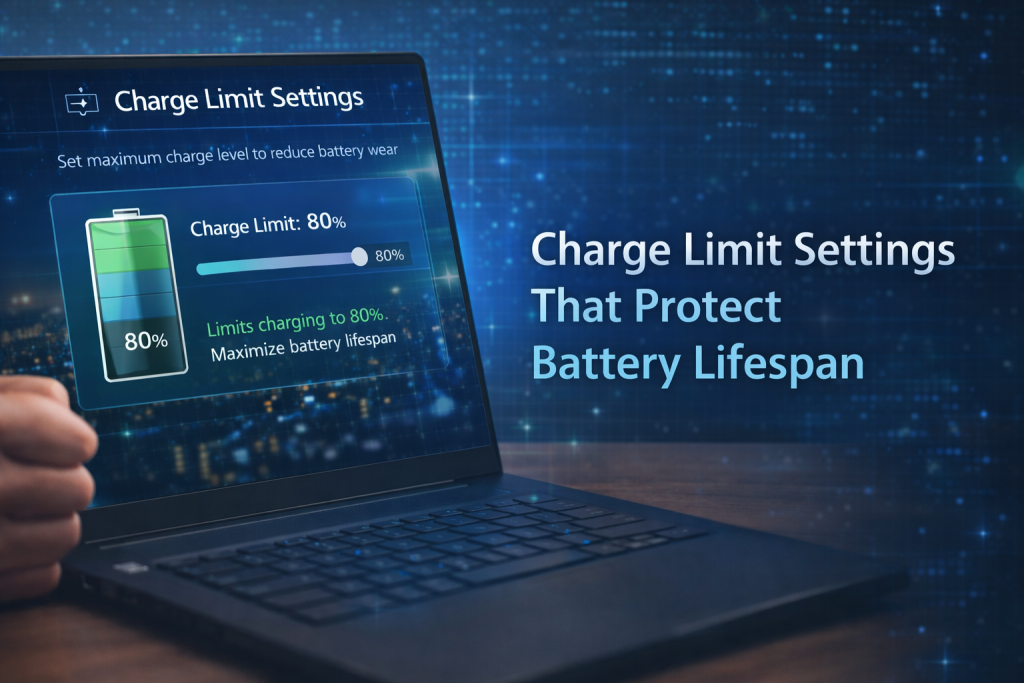
Charging habits play an important role in long-term battery health.
Although lithium-ion batteries are designed to handle full charges, keeping them at 100% continuously accelerates wear.
Many modern laptops include battery charge limit settings that stop charging around 80%.
Examples include:
• Lenovo Vantage conservation mode
• ASUS Battery Health Charging
• Dell Power Manager
• Apple Optimized Battery Charging
Stopping the charge around 80% reduces chemical stress inside battery cells. Over time, this habit significantly slows battery degradation and helps prevent laptop battery draining too fast.
Lithium-Ion Battery Calibration for Accurate Power Readings
Sometimes battery percentages appear inaccurate due to calibration issues.
In such situations, the battery may appear to drain faster than it actually does.
Calibration helps correct this issue.
Steps for proper battery calibration:
- Charge the laptop to 100%
- Leave it plugged in for about one hour
- Disconnect the charger
- Use the laptop until battery drops to 5–10%
- Shut down the device and leave it off for several hours
- Recharge to 100% without interruption
After calibration, the system recalculates battery capacity more accurately. This process can improve cases where laptop battery draining too fast appears to be caused by incorrect readings.
However, calibration should only be done occasionally.
Recognizing When Laptop Battery Draining Too Fast Means Replacement
While optimization works in many situations, batteries eventually reach the end of their lifespan.
Some clear warning signs include:
• Battery health dropping below 60%
• Laptop shutting down suddenly
• Battery draining extremely fast even when idle
• Device heating during charging
• Visible battery swelling
If these symptoms appear consistently alongside laptop battery draining too fast, replacing the battery may be the most practical solution.
Everyday Habits That Prevent Laptop Battery Draining Too Fast

Maintaining good usage habits helps preserve battery health over time.
Recommended practices include:
• Avoid exposing the laptop to excessive heat
• Disconnect the charger once the battery reaches optimal levels
• Close heavy applications when not in use
• Keep the operating system updated
• Use energy-efficient browsers when working on battery
Although battery aging cannot be completely avoided, these habits help minimize situations where laptop battery draining too fast affects daily productivity.
Related Queries and Common Questions
Why is my laptop battery draining too fast even when not in use?
Background processes often continue running even when the laptop appears idle. Cloud syncing services, system updates, and browser tabs may still consume CPU resources. Checking the task manager or activity monitor can reveal hidden processes that reduce battery life.
How to improve laptop battery life during travel or remote work?
When working away from charging points, reducing screen brightness, disabling Bluetooth, limiting background apps, and using battery saver mode can significantly extend battery life. Carrying a lightweight charger or power bank can also help during long travel periods.
Does lowering brightness really help improve laptop battery life?
Yes, reducing screen brightness directly decreases power consumption because the display is one of the largest energy users in a laptop. Even a small reduction in brightness can noticeably extend battery duration.
Is laptop battery draining too fast always a sign of battery damage?
Not necessarily. Many times the problem is caused by power-hungry applications, display settings, or inefficient system configurations. Checking battery health reports first helps determine whether the issue is software related or hardware related.
Where can you rent a reliable laptop if battery problems persist?
Sometimes the most practical option is temporarily switching to a newer device instead of repairing an aging one. Rental platforms such as IndiaRENTALZ provide laptops, MacBooks, and high-performance workstations on flexible rental plans. This allows professionals, students, and travelers to use reliable devices without investing in a new purchase.
Final Thoughts
Experiencing laptop battery draining too fast can feel frustrating, especially when your work depends on consistent performance. However, many battery problems originate from software settings, application usage, or charging habits rather than hardware failure.
By checking battery health, managing background applications, optimizing display settings, and following proper charging practices, you can significantly extend battery life.
More importantly, understanding how batteries function allows you to make informed decisions about repair, replacement, or upgrading your device. With the right approach, your laptop can continue delivering dependable performance for years to come.