

MacBooks are trusted by students, freelancers, and remote employees for their reliability and performance. However, even premium devices can run into occasional technical issues. That’s where a practical MacBook troubleshooting guide becomes essential. Instead of rushing to a service center, you can resolve many common MacBook problems quickly with the right steps.
Whether your MacBook isn’t turning on, running slow, overheating, or refusing to connect to WiFi, this guide walks you through practical solutions in a clear and structured way. Let’s begin by addressing the most frequent issues users face.
MacBook Troubleshooting Guide: When Your Device Won’t Turn On
One of the most frustrating situations is pressing the power button and seeing no response.
Before assuming hardware failure, try the following:
- Check if the charger is properly connected and the power socket is working.
- Inspect the charging cable for damage.
- Hold the power button for at least 10 seconds.
- Perform an SMC reset (for Intel-based MacBooks).
- For Apple Silicon models, simply press and hold the power button until startup options appear.
In many cases, the issue is related to battery discharge or temporary firmware glitches. Therefore, following this step-by-step approach often restores functionality without professional repair.
MacBook Troubleshooting Guide for Slow Performance

If your MacBook feels sluggish, productivity drops immediately—especially for students running multiple tabs or freelancers working with design tools.
To improve performance:
- Close unnecessary background applications.
- Check Activity Monitor for high CPU or memory usage.
- Free up at least 15–20% of storage space.
- Disable startup programs from System Settings.
- Restart your MacBook regularly.
Additionally, outdated macOS versions can slow performance. Updating the system may optimize speed, provided the update is stable and compatible.
Common MacBook problems related to slow speed often stem from storage overload or excessive background processes rather than hardware failure.
MacBook Troubleshooting Guide for Battery Draining Fast
Fast battery drain affects remote employees and students who rely on mobility.
Start by checking battery health:
- Go to System Settings > Battery > Battery Health.
- Reduce screen brightness.
- Disable Bluetooth and WiFi when not in use.
- Turn off background app refresh.
- Enable Low Power Mode.
Furthermore, apps like Chrome or heavy design software consume more energy. Switching to Safari or closing unused apps significantly improves battery backup.
If battery health drops below 80%, replacement might be required.
MacBook Troubleshooting Guide to Fix Overheating
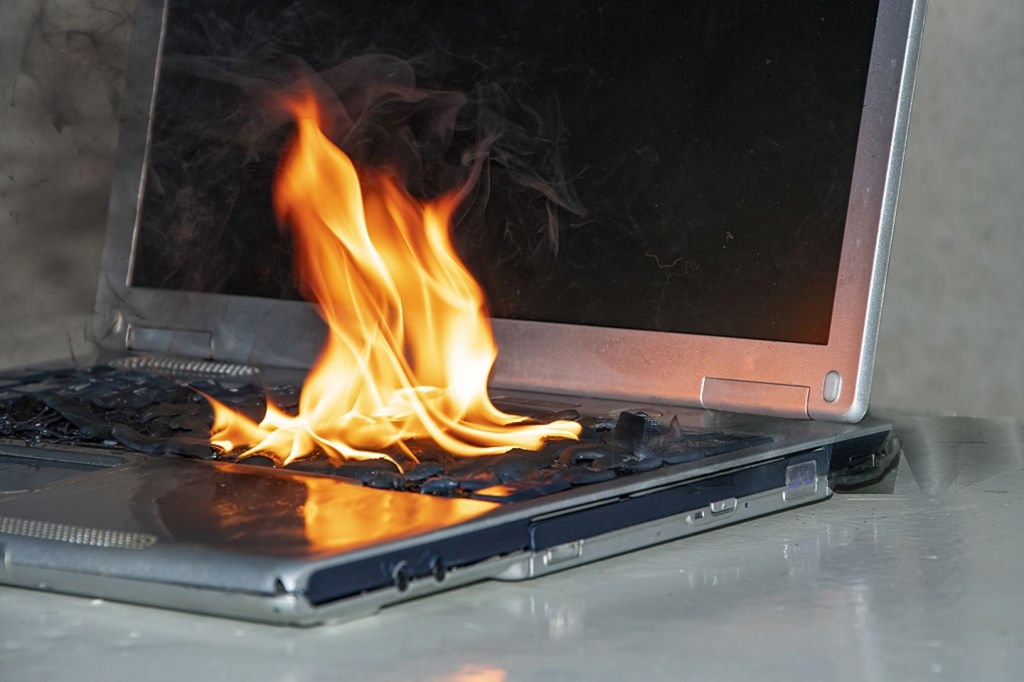
Overheating can reduce performance and long-term device lifespan.
If your MacBook becomes hot frequently:
- Ensure proper ventilation.
- Avoid placing it on soft surfaces like beds.
- Close CPU-intensive apps.
- Update macOS for thermal optimization improvements.
- Clean dust from vents (professionally if needed).
Although Apple designs MacBooks with efficient cooling systems, prolonged heavy usage such as video editing or gaming increases heat generation. Therefore, managing workload and airflow is critical.
MacBook Troubleshooting Guide for WiFi Not Connecting
Connectivity issues disrupt workflow, especially for remote employees.
Follow these steps:
- Restart your router and MacBook.
- Forget the WiFi network and reconnect.
- Reset network settings.
- Run Wireless Diagnostics (Option key + click WiFi icon).
- Update macOS if network drivers are outdated.
Common MacBook problems related to WiFi often result from corrupted network preferences rather than hardware damage.
MacBook Troubleshooting Guide for Keyboard or Trackpad Issues
When keys stop responding or the trackpad freezes, work becomes impossible.
Try these steps:
- Restart the device.
- Check for external debris under keys.
- Reset SMC (Intel models).
- Disable Force Click temporarily.
- Update macOS.
If specific keys consistently fail, hardware repair may be necessary. However, software glitches cause many temporary trackpad freezes.
MacBook Troubleshooting Guide for Screen Flickering
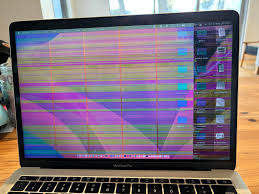
Display issues can appear as flickering, lines, or brightness inconsistency.
To resolve:
- Adjust display brightness manually.
- Disable automatic graphics switching.
- Boot in Safe Mode.
- Reset NVRAM (Intel models).
- Check for external display interference.
Sometimes, macOS updates introduce minor display bugs. Therefore, installing the latest patch often resolves the issue quickly.
MacBook Troubleshooting Guide for macOS Update Problems
macOS updates occasionally fail or freeze mid-installation.
If that happens:
- Ensure stable internet connection.
- Check available storage.
- Restart and retry installation.
- Boot into Recovery Mode.
- Use Disk Utility to verify disk integrity.
Never force shutdown during update unless completely frozen for extended time. Corrupted installations can worsen the situation.
Preventing Common MacBook Problems Before They Start
While this MacBook troubleshooting guide focuses on fixing issues, prevention saves time.
Adopt these habits:
- Regularly update macOS.
- Avoid downloading unknown software.
- Use original charging accessories.
- Maintain adequate storage space.
- Restart your MacBook weekly.
Preventive care reduces the likelihood of major disruptions.
When Troubleshooting Isn’t Enough
Sometimes, despite following every step in this MacBook troubleshooting guide, the issue persists.
In such cases:
- Visit an authorized service provider.
- Check Apple warranty coverage.
- Consider temporary device replacement if downtime affects work or studies.
For professionals, downtime directly impacts income. Therefore, having a backup option becomes important.
Related Queries and Common Questions
What should I do if my MacBook won’t turn on after charging?
If your MacBook does not power on even after charging for 30 minutes, check the adapter and cable. Then, perform an SMC reset (for Intel models) or hold the power button for startup options (Apple Silicon). If it still fails, hardware inspection may be required.
How can I speed up my MacBook without replacing hardware?
You can improve speed by clearing storage, disabling startup apps, updating macOS, and closing heavy background processes. Following this MacBook troubleshooting guide carefully usually restores performance for most users.
Why is my MacBook battery draining overnight?
Background apps, Bluetooth, and WiFi often remain active. Additionally, certain apps prevent sleep mode. Turning off unnecessary services and enabling Low Power Mode helps conserve battery.
Can overheating damage my MacBook permanently?
Yes, prolonged overheating can degrade internal components. However, managing airflow, reducing heavy workloads, and updating macOS significantly reduce risks.
Why is my MacBook WiFi connected but not working?
This often results from DNS conflicts or corrupted network settings. Forget the network, reconnect, or reset network preferences to fix the issue.
Where can I rent a MacBook if mine needs repair?
If your MacBook requires repair and you cannot afford downtime, renting a device is a practical option. At IndiaRENTALZ, students, freelancers, and remote professionals can rent MacBooks for short-term or long-term needs. The process is simple, and devices are delivered across major cities, ensuring continuity in work or studies.
Final Thoughts on Managing MacBook Issues Efficiently
MacBooks are reliable machines, yet occasional technical challenges are inevitable. Fortunately, this MacBook troubleshooting guide demonstrates that many common MacBook problems can be resolved without expert intervention.
By applying these structured steps, maintaining your device regularly, and acting quickly when issues arise, you can minimize downtime. Moreover, understanding how your MacBook behaves under different conditions empowers you to handle small disruptions confidently.
For students managing assignments, freelancers meeting deadlines, and remote employees handling projects, proactive troubleshooting ensures uninterrupted productivity.